Install Lynko like a native app.
No app store needed. Save Lynko directly to your home screen and launch it in full-screen mode. Here is exactly how to do it on iPhone and Android.
Save Lynko to your home screen using Safari.
Open Lynko in Safari
Go to getlynko.com and log into your account using Safari. Make sure you are on the page you want to save — usually your profile or dashboard.
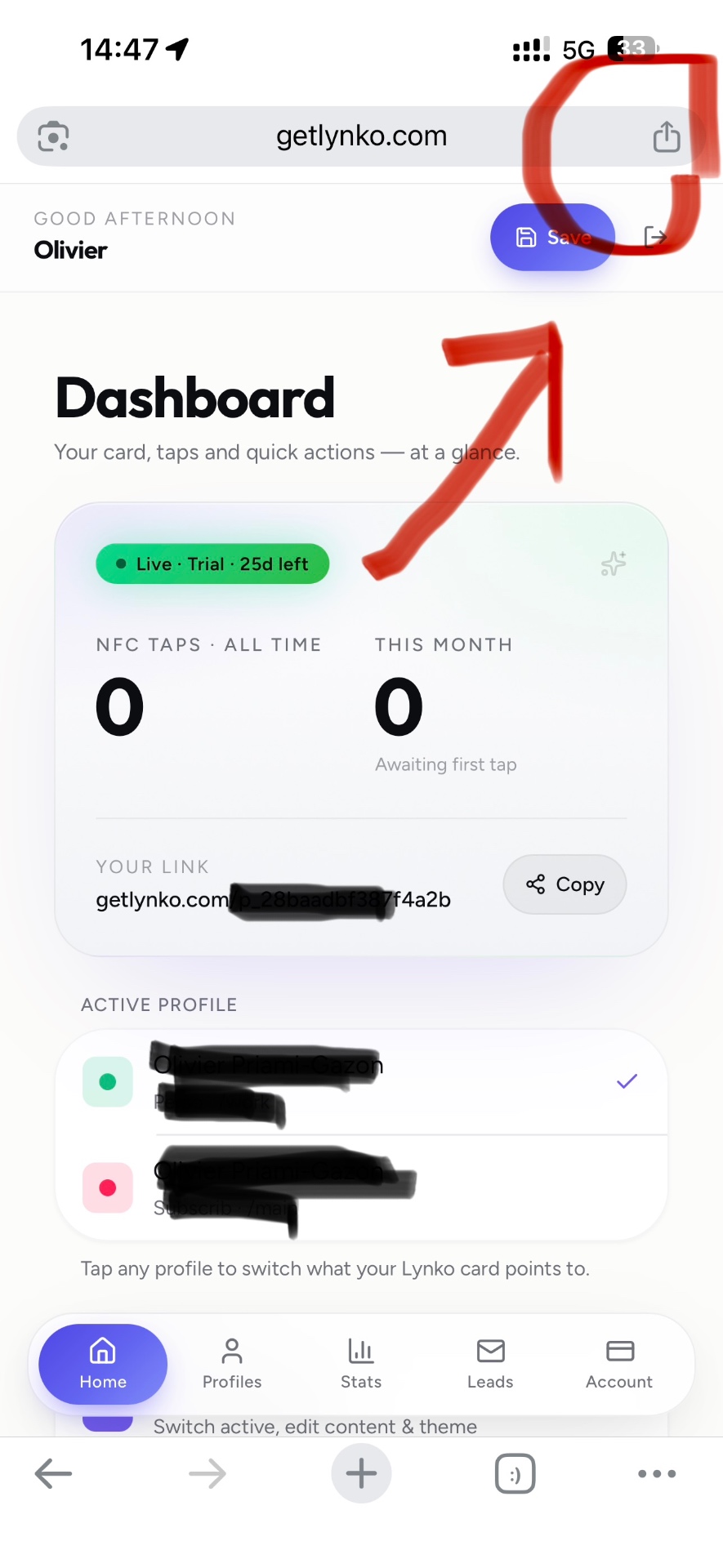
Tap the Share button
Tap the share icon at the bottom of Safari (the square with an arrow pointing up). Scroll down the share sheet until you see the option 'Add to Home Screen'.
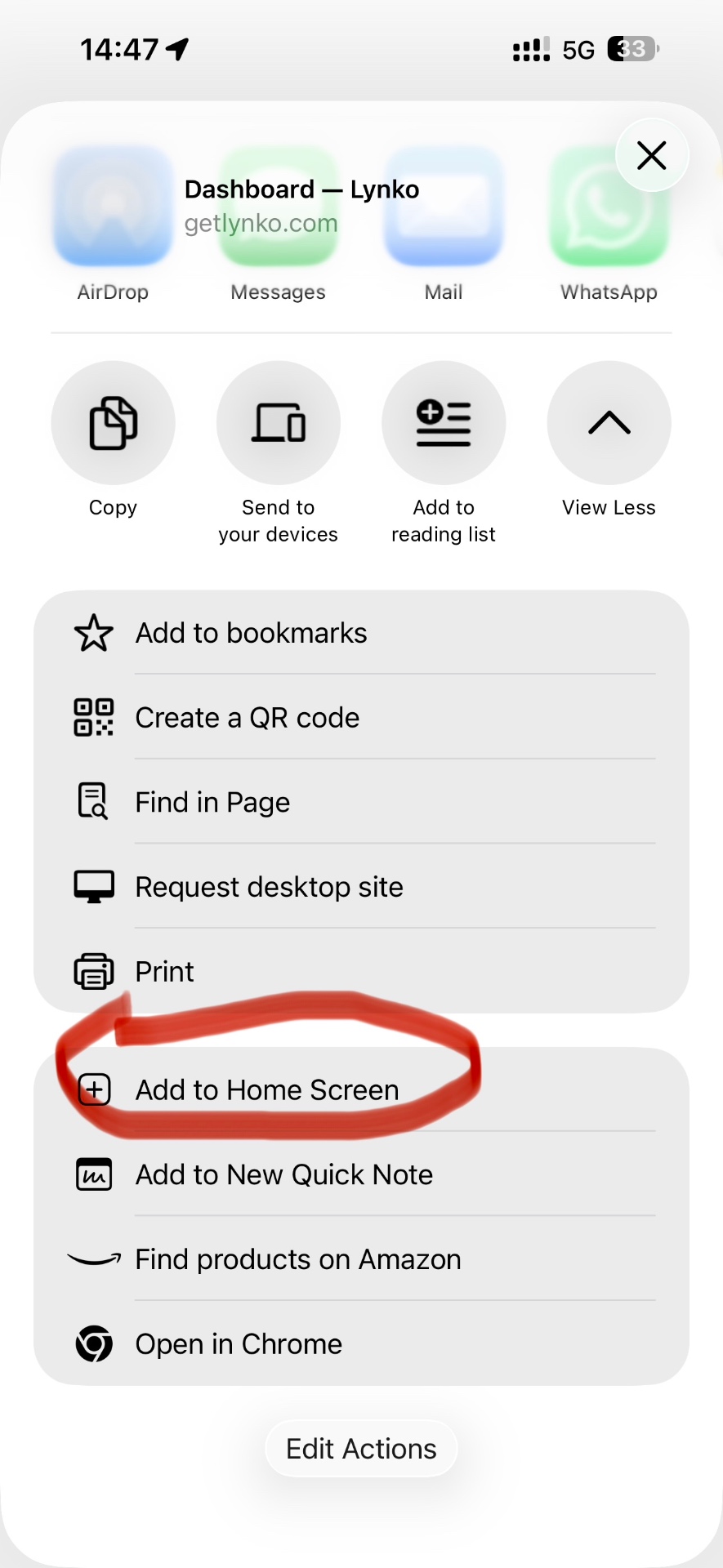
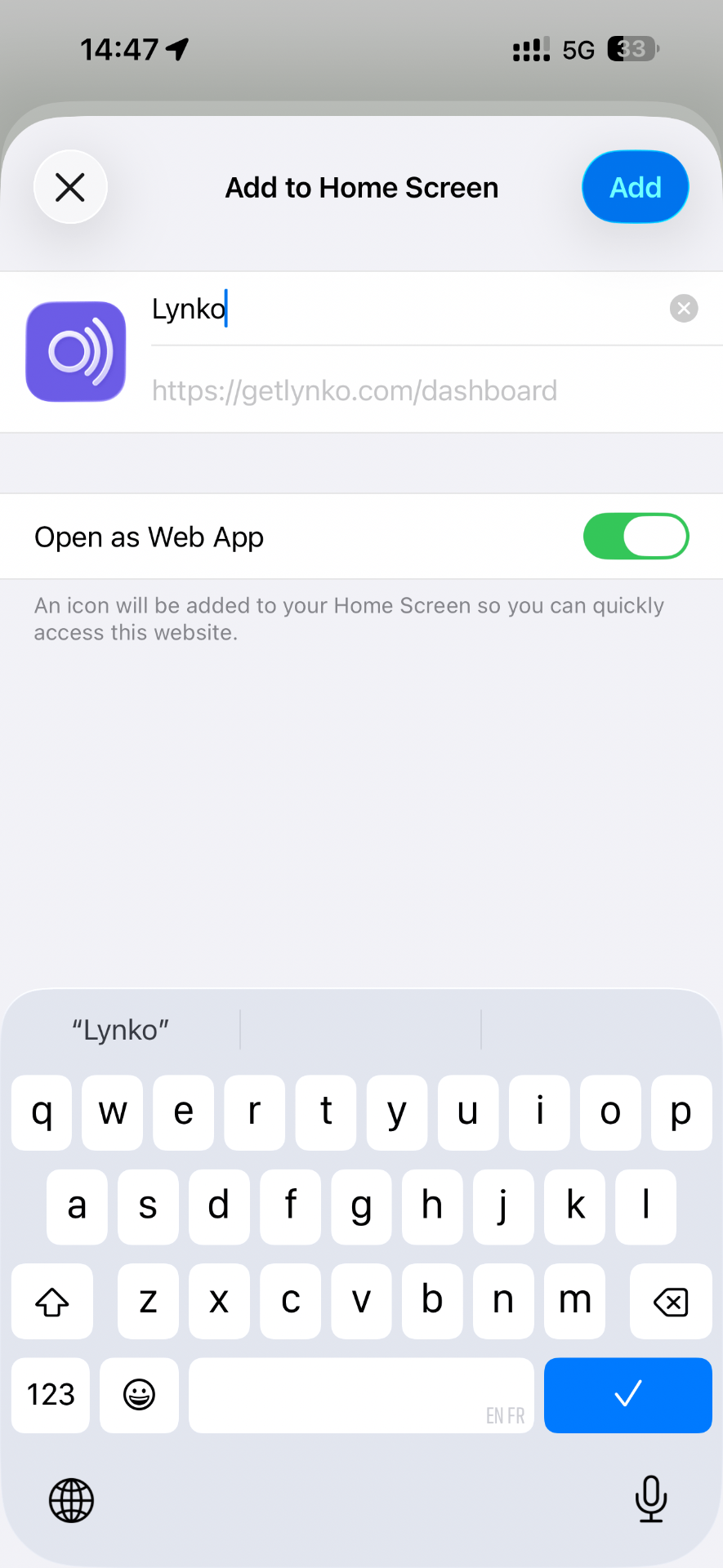
Tap Add
A preview of the icon and name will appear. You can edit the name if you like. Tap 'Add' in the top right corner and the Lynko icon will appear on your home screen, just like a native app.
Save Lynko to your home screen using Chrome.
Open Lynko in Chrome
Go to getlynko.com in Google Chrome and log into your account. Make sure you are on the page you want to save.
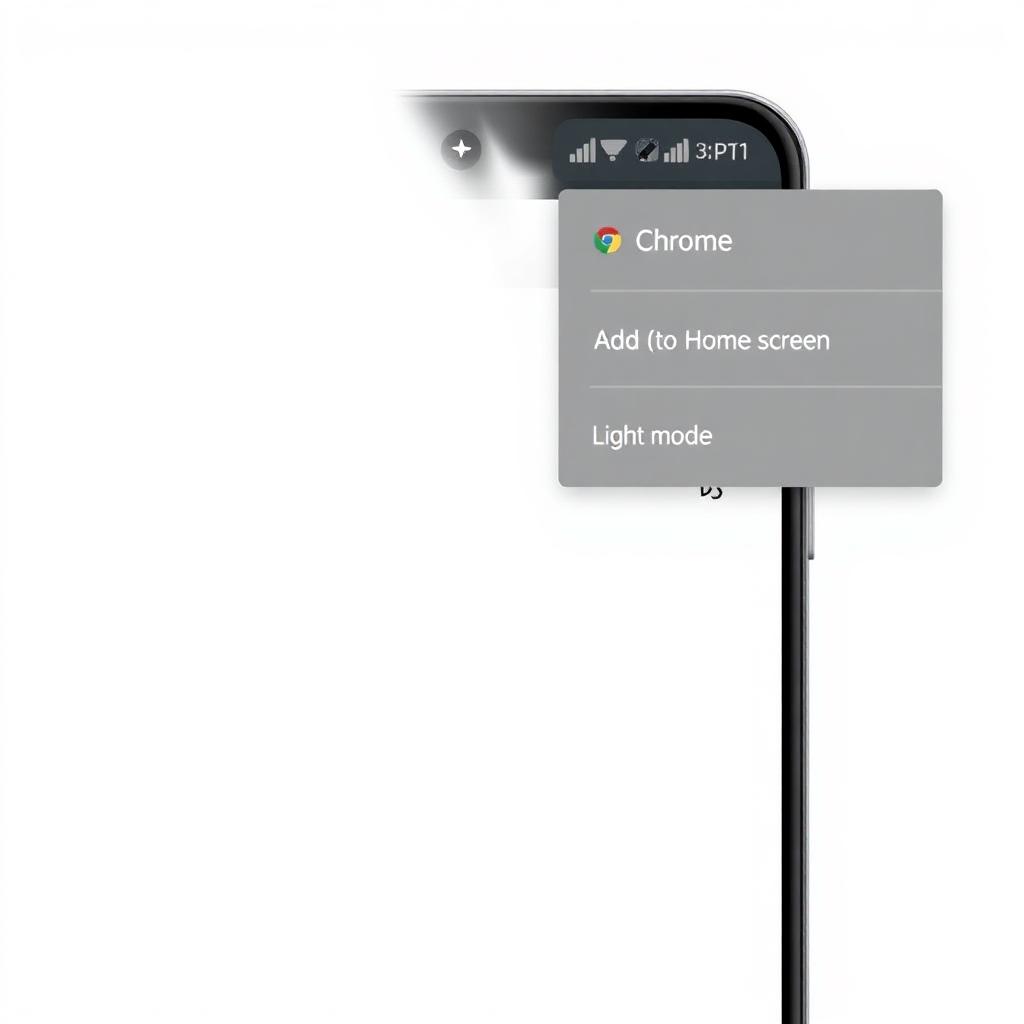
Tap 'Add to Home screen'
Tap the three-dot menu in the top right of Chrome, then select 'Add to Home screen' from the dropdown menu.
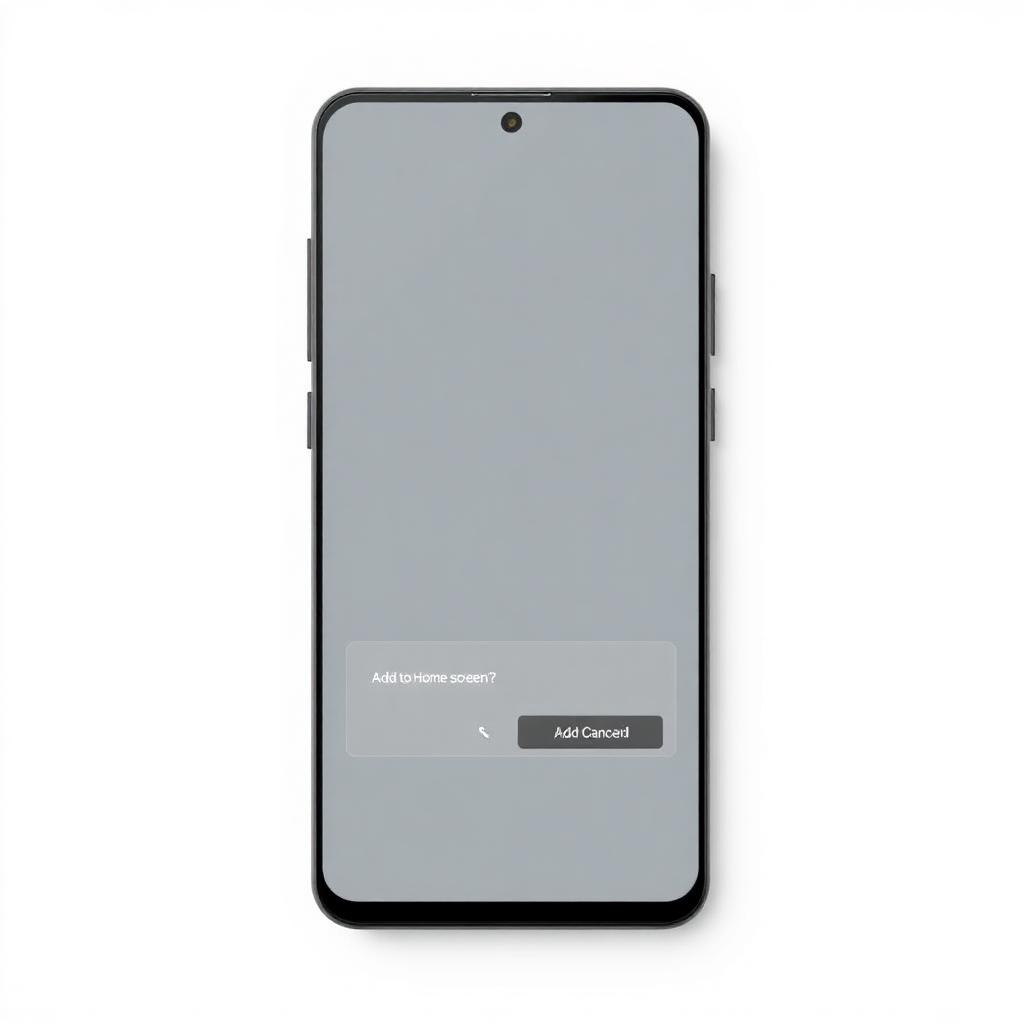
Confirm and add
A prompt will appear showing the app name and icon. Tap 'Add' and the Lynko icon will be placed on your home screen. You can launch it in full-screen app mode anytime.
Frequently asked questions
Will it work offline?+
Once saved to your home screen, Lynko will cache key pages so you can view your profile and contacts even with a weak or no connection. Full offline editing requires an internet connection.
Does it look like a real app?+
Yes. When you open Lynko from your home screen, it launches in full-screen mode with no browser chrome — just like a native app downloaded from the App Store or Play Store.
Can I save it on an iPad too?+
Absolutely. The steps are the same on iPad using Safari. Tap the share icon, scroll down, and select 'Add to Home Screen'.
What if I use Samsung Internet instead of Chrome?+
Samsung Internet supports 'Add to Home screen' too. Tap the menu icon (three lines) at the bottom, then select 'Add page to' → 'Home screen'.
Will I get push notifications?+
Not at this time. Lynko does not send push notifications through the webapp. All important updates are sent via email.
Ready to try it out?
Log into Lynko on your phone, save it to your home screen, and carry your digital business card in your pocket.